
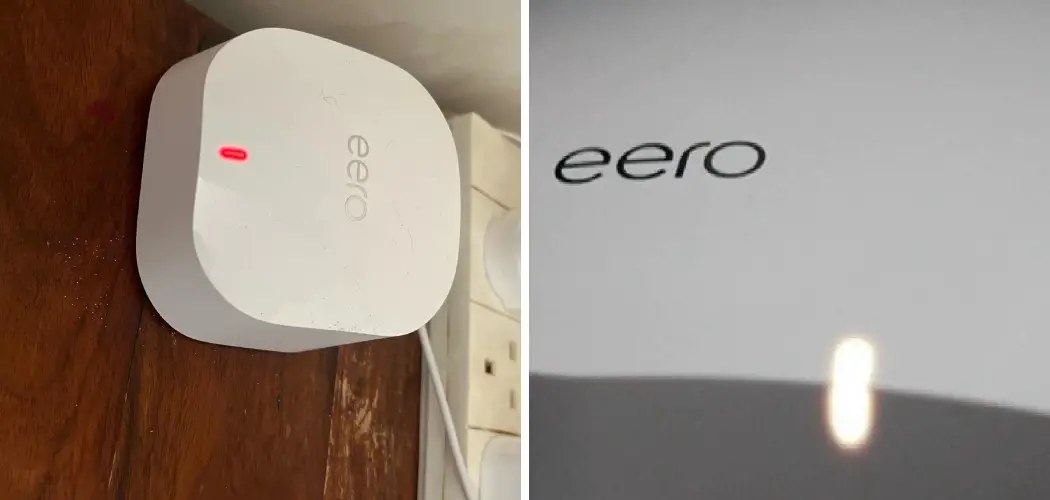
A glowing red light on your eero router can feel alarming, especially when your internet suddenly stops working. The good news is that this small signal is simply your device’s way of telling you something needs attention. Once you understand what it means, learning how to fix eero red light issues becomes a quick and manageable task, even if you’ve never touched a router setting before.

Your eero uses different light colors to communicate its status. A steady white or no light usually means everything is running smoothly, while a red light points to a connection problem. It might mean your eero has lost its link to the internet, lost contact with another eero in your network, or simply needs a fresh start.
In this guide, we’ll walk you through everything in plain language. You’ll discover why this happens, why solving it matters, and a clear step-by-step process to get your network back online. Whether you’re a complete beginner or someone who likes to handle things yourself, you’ll find this guide friendly, supportive, and easy to follow.
Why Fixing Your Eero Red Light Matters
Ignoring a red light on your eero means living with dropped connections, buffering videos, and unreliable Wi-Fi across your home. For anyone who works remotely, streams shows, or relies on smart devices, even a few minutes of downtime can throw off your whole day. Addressing the problem quickly keeps your household connected and your routine running smoothly.
Beyond convenience, solving the issue early protects your wider network health. A single offline eero can disrupt the mesh system, weakening coverage in other rooms. By tackling it promptly, you avoid bigger headaches later and keep all your eeros working together as one strong, seamless network. Best of all, most fixes take just a few minutes and require no technical background, so you stay empowered and in control.
Step-by-Step Guide to How to Fix Eero Red Lightt
Step 1: Check Your Internet Source
Before adjusting your eero, start at the source. A red light often means the problem lies with your modem or your internet service provider, not your eero itself. Look at your modem and confirm the indicator lights show a healthy connection. If those lights are off or blinking unusually, the issue is likely upstream.
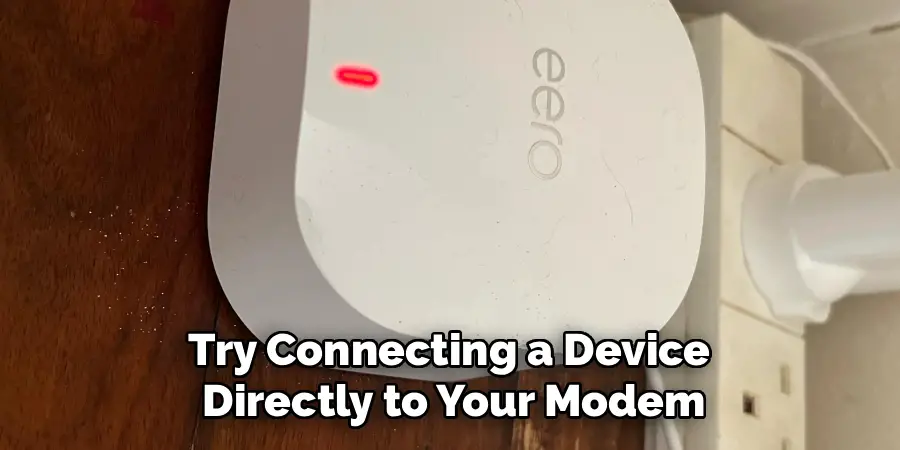
Try connecting a device directly to your modem with an ethernet cable to test whether the internet works at all. If you get no connection, contact your provider before troubleshooting further. Ruling out service outages first saves you time and prevents you from chasing a problem that isn’t yours to solve.
Step 2: Inspect All Your Cables
Loose or damaged cables are one of the most common reasons behind a red light. Take a moment to check every connection in your setup. Make sure the ethernet cable running between your modem and your gateway eero is firmly seated on both ends. A cable that looks plugged in can still be slightly loose.
While you’re there, examine the power cable too. Ensure it sits snugly in the wall outlet and the back of your eero. If a cable looks frayed, bent, or worn, swap it for a spare. Sometimes the simple act of unplugging and firmly reconnecting everything restores the connection instantly.
Step 3: Restart Your Eero Device
If your cables are fine, a restart is your next best move and a key part of how to fix eero red light problems. Restarting clears temporary glitches that build up over time and refreshes the connection between your device and the internet. Think of it as giving your eero a quick nap so it wakes up ready to work.
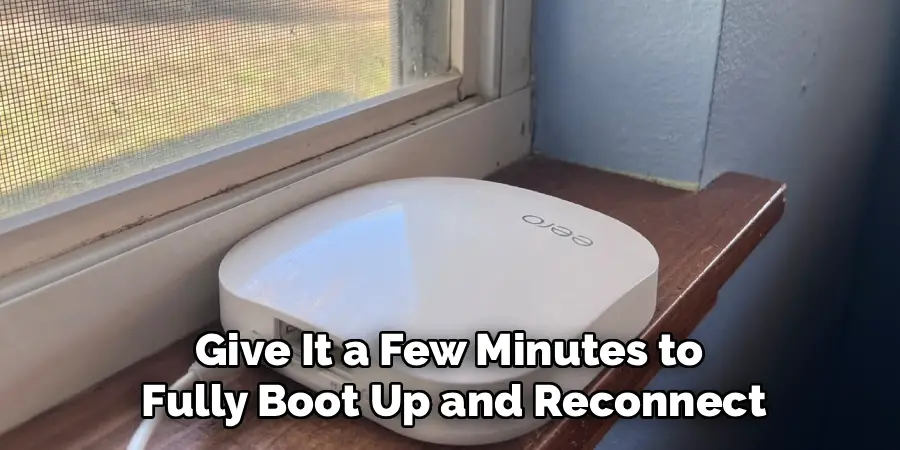
Unplug your eero from power, wait about thirty seconds, then plug it back in. Give it a few minutes to fully boot up and reconnect. Watch the light closely during this time. In many cases, the red light turns white once the device finishes restarting and re-establishes its connection.
Step 4: Restart Your Modem Too
Sometimes the real culprit is your modem, not your eero. Restarting both devices together often clears stubborn connection issues that a single reboot can’t fix. This step works especially well when your internet source seems fine but your eero still refuses to come back online.
Unplug both your modem and your gateway eero from power. Wait at least sixty seconds, then plug your modem back in first. Let it fully power up and stabilize before reconnecting your eero. This order matters because your eero needs a ready signal from the modem to link up properly. Once both finish booting, check whether the light has changed color.
Step 5: Use the Eero App to Diagnose
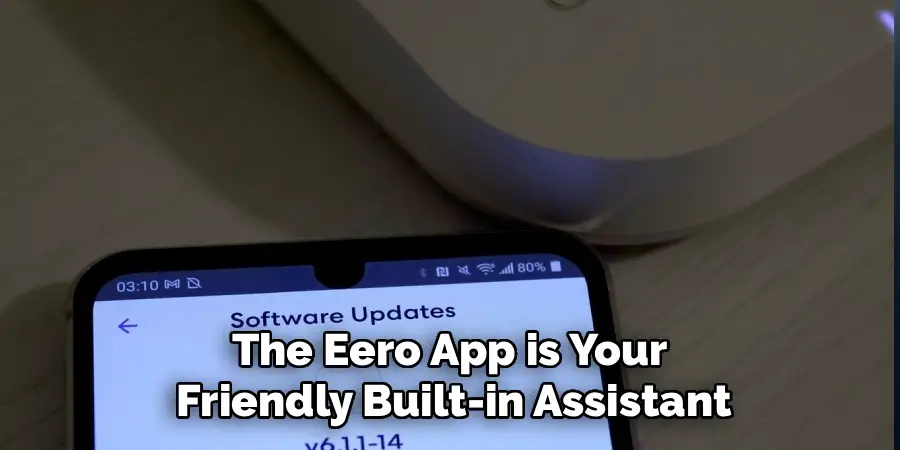
The eero app is your friendly built-in assistant for spotting trouble. Open it on your phone and head to the home screen, where you’ll see the status of every eero in your network. Any device showing an issue will be flagged clearly, often with a helpful message explaining what’s wrong.
The app can also run a quick connection test to pinpoint where the problem lies. Tap into the affected eero for more details and follow any prompts it offers. This real-time feedback takes the guesswork out of troubleshooting and guides you toward the right fix, making the whole process feel reassuring rather than frustrating.
Step 6: Reposition Secondary Eeros
If a secondary eero shows red while your gateway looks healthy, distance might be the problem. Mesh eeros need to stay within a reasonable range of each other to maintain a strong link. When they sit too far apart, or thick walls and large appliances block the signal, the connection drops and the light turns red.
Move the affected eero closer to your gateway or another eero in the network. Avoid placing it near microwaves, metal objects, or inside cabinets, as these interfere with the wireless signal. After repositioning, wait a moment for the devices to reconnect. A steady white light confirms they’ve found each other again.
Step 7: Reset Your Eero as a Last Resort
When nothing else works, knowing how to fix eero red light troubles often comes down to a factory reset. This step wipes your device’s settings and lets you set it up fresh, clearing deep software issues that simpler fixes can’t reach. Save it for last, since you’ll need to reconfigure your network afterward.
To reset, press and hold the button on the bottom of your eero for about fifteen seconds until the light flashes red. Release it and let the device reset fully. Then open the eero app and follow the guided setup to rebuild your network. Support is always available if you need a hand.

Frequently Asked Questions
What Does a Red Light on My Eero Actually Mean?
A red light signals that your eero has lost its internet connection or its link to another eero in the network. It’s your device’s clear way of flagging a problem that needs attention. The cause could be anything from a service outage to a loose cable or a software glitch. Checking your internet source and connections first usually points you toward the right solution.
How Long Should I Wait After Restarting My Eero?
Give your eero at least two to three minutes to fully restart and reconnect. During this time, the light may cycle through different colors as the device boots up and searches for a connection. Avoid unplugging it again too quickly, as interrupting the process can cause further delays. Patience here often rewards you with a steady white light once everything reconnects properly.
Will a Factory Reset Delete All My Settings?
Yes, a factory reset erases your network name, password, and all custom settings, returning your eero to its original state. Because of this, treat it as a final option after trying gentler fixes first. Once reset, you’ll rebuild your network through the eero app using its guided setup. The process is straightforward, and the app walks you through each step clearly.
Why Does Only One of My Eeros Show Red?
When a single secondary eero displays red while the others stay healthy, the issue usually involves distance or interference. That device may sit too far from your gateway or another eero, or something nearby is blocking the wireless signal. Moving it closer and away from metal objects or appliances often restores the link quickly, returning the light to a reassuring white.
Do I Need to Contact My Internet Provider?
Sometimes, yes. If you’ve checked your cables, restarted your devices, and the red light persists, the problem may lie with your internet service. Connect a device directly to your modem to test the connection. If there’s still no internet, your provider is likely experiencing an outage or account issue, and a quick call to their support team will confirm the cause.
Conclusion
A red light on your eero doesn’t have to ruin your day. As you’ve seen, learning how to fix eero red light issues is rarely complicated once you work through the steps in order. Start by checking your internet source and cables, move on to restarting your eero and modem, and lean on the eero app for clear, real-time guidance. If a secondary device causes trouble, repositioning it usually does the trick, and a factory reset stands ready as your final option.
The key takeaway is simple: most red light problems come down to connection hiccups that you can solve yourself in just a few minutes. You don’t need technical expertise, only a little patience and this guide by your side. So next time that red glow appears, take a deep breath and work through these steps with confidence. Your network will be back up and running before you know it, and expert support is always there if you need extra help along the way.

Rick is a handyman who grew up helping his dad with his business. He learned a lot from him about how to fix things, and also about how to work hard and take care of business. These days, Rick is still into fixing things- only now, he’s doing it for a living.
Rick is always looking for new ways to help people grow and develop. That’s why he started contributing to this blog: to share all his experience and knowledge so that he can help people who are interested in DIY repair.