

The BlissLights Sky Lite projector can transform any room into a breathtaking nebula, but it can be frustrating when the stars suddenly go out. Whether your device won’t turn on, the lasers are gone, or the rotation has stopped, many common issues can be resolved with some simple troubleshooting. Before you worry about a replacement, there are several steps you can take to diagnose and potentially solve the problem yourself.

This guide is designed for everyone, offering clear, beginner-friendly instructions and advice. We will walk you through a series of checks to help you understand how to fix BlissLights Sky Lite and bring the cosmos back to your ceiling.
BlissLights Sky Lite is a fascinating device that transforms any room into a mesmerizing star-filled galaxy. However, like any electronic device, it can occasionally encounter problems that might disrupt its functionality.
Whether it’s the lights not turning on, the rotation feature malfunctioning, or the lasers appearing dim or absent, these issues can often be addressed without professional assistance. With the right guidance, you can quickly troubleshoot and restore your Sky Lite to its full brilliance, ensuring uninterrupted enjoyment of its captivating ambiance.
Why Troubleshooting is Important
Troubleshooting your Sky Lite is crucial not only to restore its functionality but also to extend its lifespan. Identifying and addressing minor issues promptly prevents them from evolving into more significant problems that might require costly repairs or replacements. Additionally, understanding the root cause of a malfunction empowers you to use the device more effectively and avoid similar issues in the future. Proper maintenance and timely fixes ensure that your Sky Lite continues to create the stunning visual experiences it is designed for, delivering long-lasting enjoyment.
Tools and Materials
To maintain and troubleshoot your Sky Lite effectively, you will need a few essential tools and materials. These include a microfiber cloth for cleaning the lens and exterior, a small Phillips-head screwdriver for accessing internal components if necessary, and a can of compressed air to remove dust from hard-to-reach areas. Additionally, having a user manual on hand can provide detailed guidance for identifying specific issues or performing maintenance tasks. If replacement parts are required, ensure they are sourced from authorized retailers to guarantee compatibility and quality. With these tools and materials, you can confidently care for your Sky Lite and preserve its performance.
7 Step-by-Step Guide on How to Fix BlissLights Sky Lite
Step 1: Check the Power Source
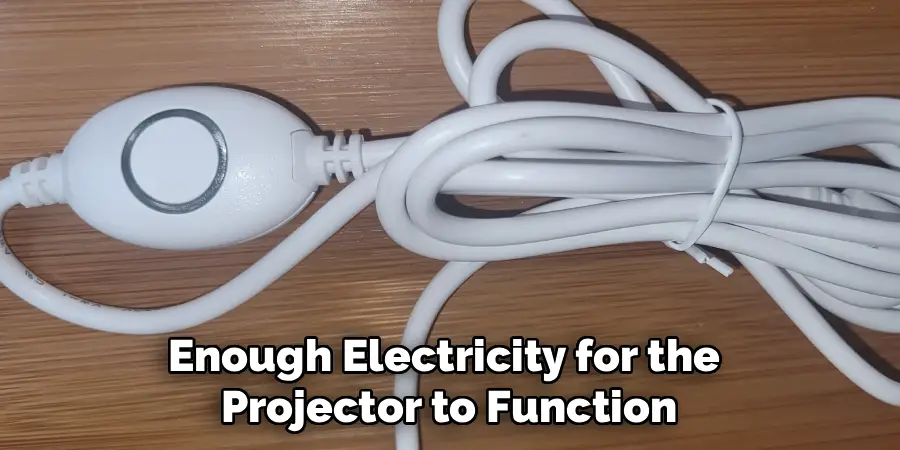
The most common reason a Sky Lite fails to work is a power issue. Start by ensuring the USB cable is securely plugged into both the projector and the power adapter. A loose connection at either end can prevent the device from receiving power. Next, try plugging the adapter into a different wall outlet to rule out a faulty socket. It is also important to verify you are using a power adapter that supplies at least 5V and 1A of output. Using an underpowered source, like some laptop USB ports, may not provide enough electricity for the projector to function correctly.
Step 2: Test a Different Cable
If the projector still does not turn on after checking the connections, the problem might be with the USB cable or the power adapter itself. These components can fail over time. Find another compatible Mini USB cable (for older models) or USB-C cable (for 2.0 models) and a different USB wall adapter that you know is working. A phone charger adapter is often a perfect substitute for testing. If the Sky Lite powers on with the new cable and adapter, you have successfully identified the problem and simply need to replace the faulty accessory.
Step 3: Reset the Device
Sometimes the issue can be as simple as a stuck button or a minor software glitch. Visually inspect the control buttons on the side of your Sky Lite. Make sure they are not stuck in the down position and can be pressed freely. To perform a basic reset, unplug the device from the power source and let it sit for about a minute. This allows the internal components to fully discharge. Afterward, plug it back in and try turning it on again. This simple power cycle can often resolve temporary malfunctions without any further action needed.
Step 4: Clean the Laser Aperture
If the blue nebula cloud is visible but the green laser “stars” are missing, dim, or blurry, the issue is likely a dirty laser aperture. The small glass lens where the laser emerges can easily collect dust, fingerprints, or haze, which obstructs the beam. To clean it, first unplug the device. Then, take a soft, dry microfiber cloth or a cotton swab lightly dampened with isopropyl alcohol. Gently wipe the small glass lens in a circular motion. Be careful not to apply too much pressure. A clean lens ensures a crisp and bright star projection.
Step 5: Address Issues with the Nebula Cloud Effect
If the green stars are working but the blue nebula effect is missing or not moving, the problem lies with the LED and motor system. First, cycle through the projector’s modes using the control button to ensure you haven’t accidentally turned off the nebula effect. If it’s still not visible, the LED may have failed. If the nebula is visible but stationary, the internal rotation motor might be the issue. Try gently tapping the side of the unit; sometimes, this can nudge a stuck motor back into action, though it may indicate a more significant internal problem.

Step 6: Troubleshoot a Noisy Motor
A grinding or clicking noise during operation usually points to a problem with the rotation motor. This can happen if the device was dropped or if there is an internal obstruction. While the device is unplugged, you can try gently shaking it to see if you can hear any loose components inside. A persistent mechanical noise often indicates an internal hardware failure. For safety reasons, it is not recommended to open the casing of the Sky Lite, as it contains laser components and has no user-serviceable parts inside.
Step 7: Allow the Device to Cool Down
The BlissLights Sky Lite can generate a small amount of heat during normal operation. It has a built-in 4-hour automatic shutoff timer to prevent overheating. If your device has been running for a long time and suddenly turns off, it may have overheated. Unplug the projector and move it to a cool, well-ventilated area. Let it sit for at least 30 minutes to an hour to cool down completely. Once it has cooled, plug it back in and see if it functions normally. Always ensure there is adequate airflow around the device during use.
Frequently Asked Questions
Why Are the Green Stars on My Sky Lite Not Showing Up?
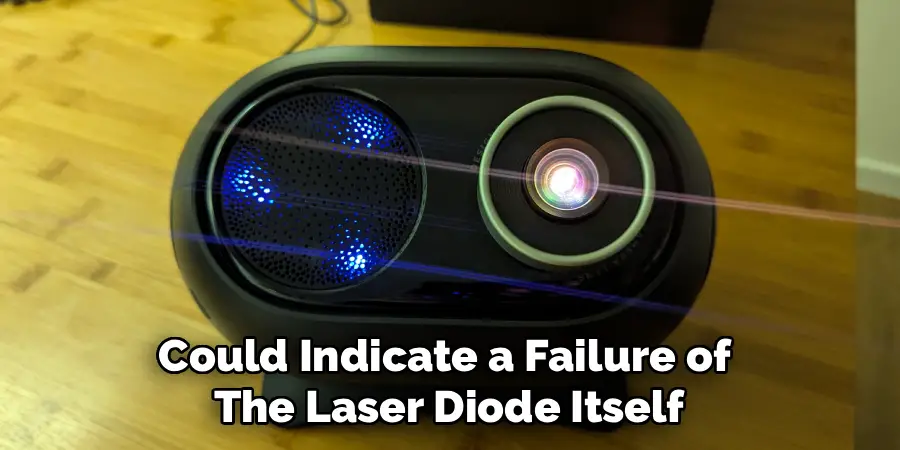
If the blue nebula is visible but the green stars are not, the most common cause is a dirty laser lens. Unplug the unit and gently clean the small glass aperture with a soft microfiber cloth. If cleaning doesn’t work, ensure you haven’t accidentally turned off the stars via the control button. In some cases, it could indicate a failure of the laser diode itself.
Can I Replace the Bulb or LED in My BlissLights?
No, the LED and laser diode components inside the BlissLights Sky Lite are integrated into the internal circuitry and are not designed to be user-replaceable. Attempting to open the device to change a “bulb” can damage the unit permanently and will void your warranty. The LEDs are rated for thousands of hours of use.
My Projector Turns Off by Itself. Is It Broken?
Not necessarily. All BlissLights Sky Lite models have a built-in automatic shutoff timer that turns the device off after approximately 4 hours of continuous use. This is a safety and power-saving feature designed to prevent overheating and prolong the life of the projector. If your device turns off after about four hours, it is functioning as intended.
Why Did My Sky Lite Stop Rotating?
If the nebula cloud effect has stopped moving, it indicates an issue with the internal rotation motor. You can try power cycling the device (unplugging it and plugging it back in) to see if it resets the motor. If the motor continues to make a grinding noise or does not move at all, it likely points to a hardware failure that is not user-serviceable.
Is It Safe to Open My BlissLights Sky Lite to Fix It?
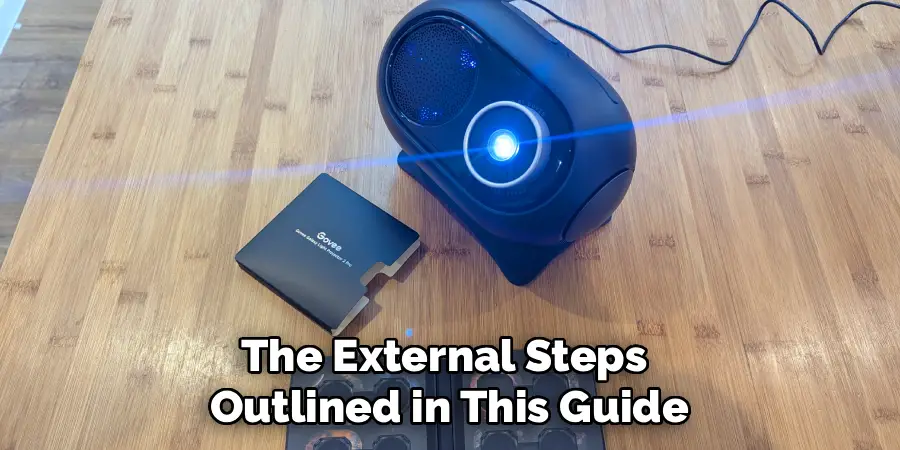
It is strongly recommended that you do not open the casing of your Sky Lite. The device contains Class 2 laser components and delicate electronics. Opening it will void the manufacturer’s warranty and can lead to irreparable damage or potential safety hazards. Troubleshooting should be limited to the external steps outlined in this guide.
Conclusion
When your personal galaxy projector stops working, it doesn’t always mean it’s time for a replacement. By following a logical troubleshooting sequence, you can solve many of the most common problems yourself. The key is to start with the simplest solutions, like checking the power supply and cleaning the lens, before assuming a major hardware failure. These simple steps can often resolve issues with power, projection, and rotation, saving you time and frustration. Now that you have a better understanding of how to fix BlissLights Sky Lite, you can confidently diagnose the issue and, hopefully, restore its magical glow to your room.
