
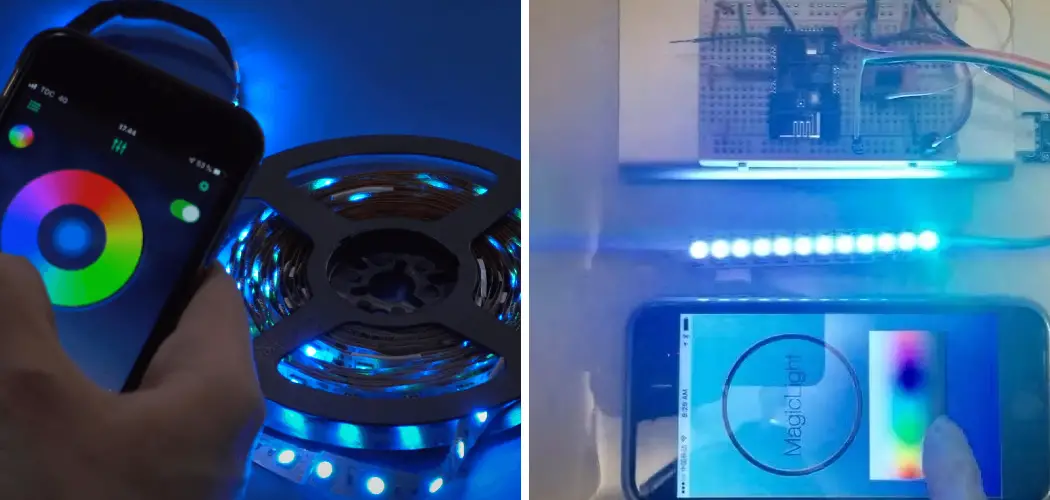
Smart lighting has changed how we set the mood in our homes, and you don’t need fancy hubs or complicated wiring to enjoy it. If you’ve just bought a strip of color-changing LEDs, you might be wondering how to connect LED light to bluetooth so you can control everything from your phone.
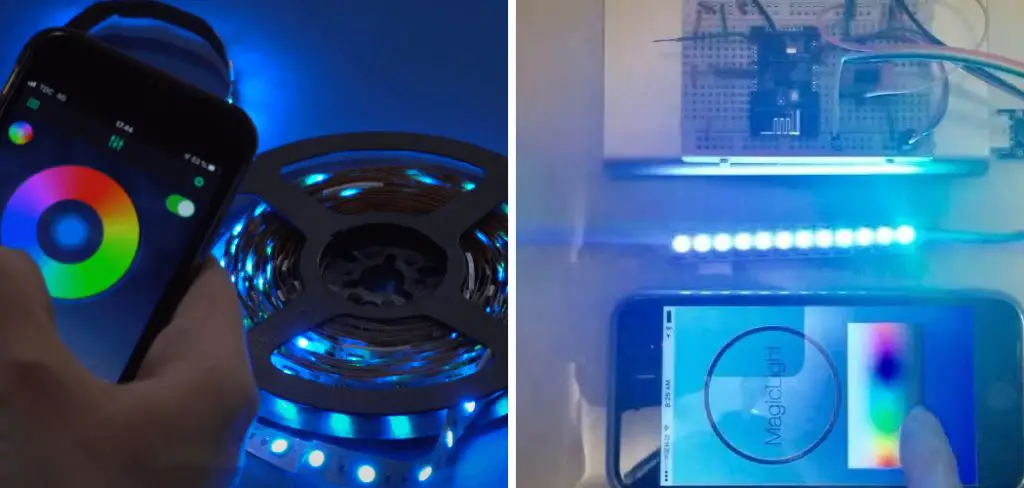
The good news? It’s easier than you think. With a quick pairing process, you can dim your lights, switch colors, set timers, and even sync the glow to your favorite music, all from the palm of your hand. No remote to lose, no light switch to fumble for in the dark. This guide is built for beginners, so we’ll walk through each step in plain language. By the time you finish reading, you’ll have your lights paired and dancing to your commands. Whether you’re decorating a bedroom, a gaming setup, or a cozy living room, bluetooth control gives you flexibility and fun. Let’s get your lights talking to your phone the simple way.
Why Connecting LED Lights to Bluetooth Matters
Pairing your lights with bluetooth unlocks a level of control that a basic remote simply can’t match. Instead of cycling through preset colors, you get a full color wheel, brightness sliders, and custom scenes right on your screen. You can save your favorite settings and recall them with a single tap.
There’s also the convenience factor. Your phone is almost always within reach, so adjusting your lights takes seconds. Many apps add bonus features like music sync, sunrise alarms, and scheduling, letting your lights turn on automatically when you come home. Best of all, bluetooth works without Wi-Fi, so setup stays quick and your connection stays private. For anyone who wants smarter lighting without the cost or hassle of a full smart-home system, this is the perfect starting point.
Step-by-Step Guide to How to Connect LED Light to Bluetooth
Step 1: Check Your LED Compatibility
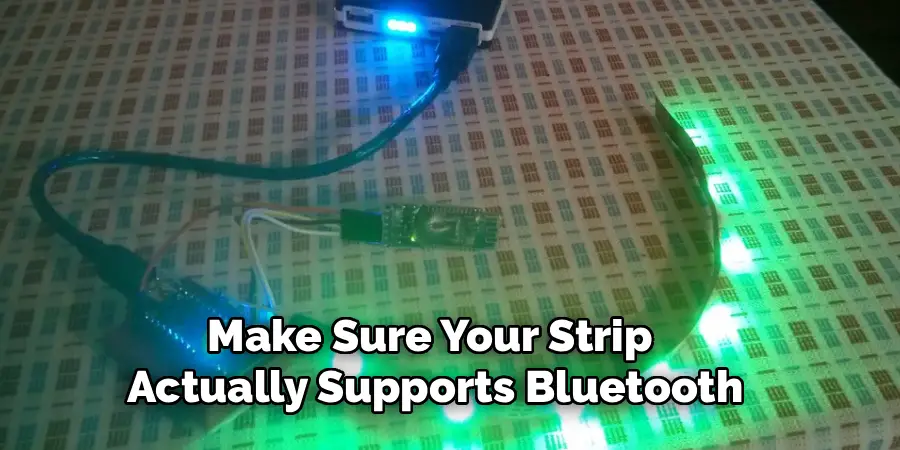
Before you start pairing, make sure your strip actually supports bluetooth. Look at the packaging or the controller box for a bluetooth logo or wording that mentions app control. Many budget strips only come with an infrared remote, which won’t connect to your phone at all.
If your lights mention a specific app by name, that’s a strong sign they’re bluetooth-ready. Jot down the brand and model so you can find the matching app later. Taking a minute to confirm compatibility now saves you frustration down the line, because trying to pair a non-bluetooth strip simply won’t work no matter how many times you try.
Step 2: Power Up and Position the Strip
Plug your LED strip into a working outlet and switch it on using the inline controller or the remote that came in the box. You should see the lights glow, usually defaulting to a solid color or a slow color-changing pattern. A powered strip is essential, since your phone can only detect lights that are actively running.
Try to stay within a few feet of the controller during setup, because bluetooth has a limited range. Walls and large furniture can weaken the signal too. Keeping things close and unobstructed during this first connection helps your phone find the lights quickly and avoids those annoying dropped pairings that happen when you’re too far away.
Step 3: Download the Right App
Every bluetooth LED brand uses its own companion app, so grab the one your manufacturer recommends. Common names include Happy Lighting, LED BLE, Govee Home, and Lotus Lantern, but always check your manual or packaging for the exact match. Head to the App Store or Google Play, search the name, and install it.
Be careful to download the official app rather than a copycat with a similar name. Reading recent reviews helps you spot the genuine one. Once installed, open it and allow any permissions it requests, such as bluetooth access and location. These permissions are normal and necessary, because your phone needs them to scan for and link up with nearby lighting devices.

Step 4: Enable Bluetooth on Your Phone
Now turn on bluetooth in your phone’s settings, since the app can’t search for your lights without it. On most devices, you’ll find the toggle in the quick settings menu or under the main settings screen. Flip it on and wait a moment for your phone to start scanning.
You don’t usually need to pair the lights directly through your phone’s bluetooth menu. Instead, the app handles the connection for you. Still, having bluetooth switched on at the system level is what makes the whole process possible. If you skip this step, the app will simply show an error or keep searching endlessly, so double-check that little bluetooth icon is active before moving on.
Step 5: Pair Your Phone
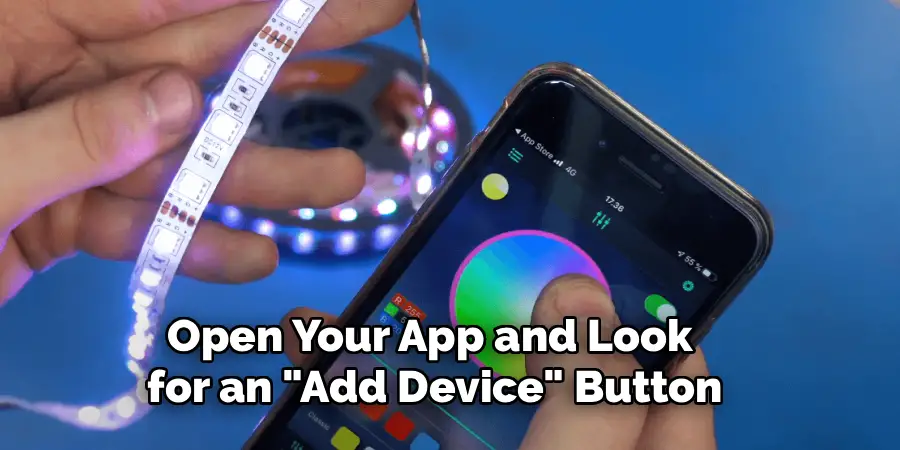
Open your app and look for an “Add Device” button, often shown as a plus sign. The app will scan and display any nearby strips, usually listed by model number or a generic name. Tap your device when it appears, and the app will handle the pairing automatically within a few seconds.
If nothing shows up, turn your lights off and on again to reset their discoverable mode, then rescan. Once connected, you’ll typically see a confirmation message and the control screen will load. This moment is the heart of how to connect LED light to bluetooth, and from here your phone becomes the command center for every color and effect.
Step 6: Test the Controls and Set Up Bluetooth Features
With your lights linked, it’s time to play. Try sliding the brightness bar up and down, then tap different colors on the wheel to confirm the strip responds instantly. Explore the preset scenes, like candlelight flicker or rainbow fade, to see what your lights can do. Testing now confirms your connection is solid and stable.
This stage is also where the extra perks of how to connect LED light to bluetooth really shine. Many apps offer music sync that pulses lights to sound, timers that turn lights on at sunset, and custom modes you can save. Experiment freely, since adjusting settings won’t harm your strip and helps you learn the app faster.
Step 7: Troubleshoot and Save Your Settings
If your lights act sluggish or disconnect, don’t panic. Move closer to the strip, close other apps, or toggle bluetooth off and back on. A quick restart of both the app and your phone clears most minor glitches. For stubborn issues, unplug the strip for ten seconds, then reconnect through the app from the start.
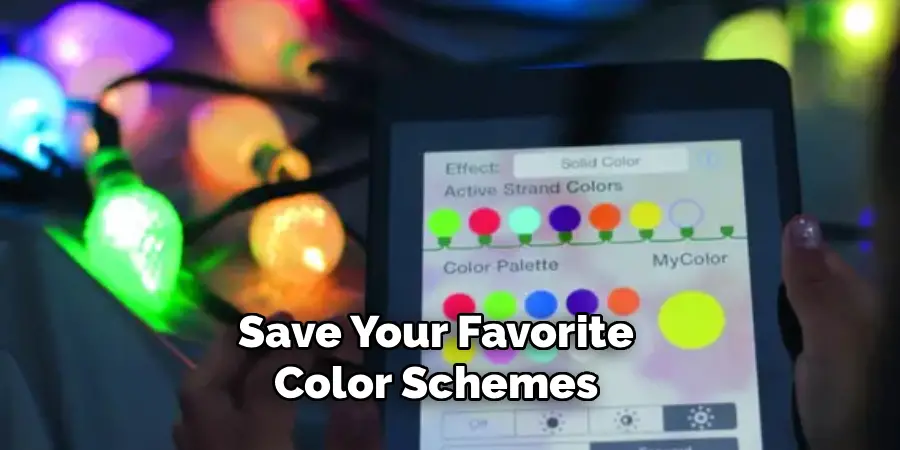
Once everything runs smoothly, save your favorite color schemes and scenes within the app so you can recall them anytime. Some apps let you create shortcuts or schedules too. Locking in these settings means you won’t have to fiddle with controls every evening, leaving you free to simply enjoy your perfectly lit space.
Frequently Asked Questions
Do I Need Wi-Fi to Control My LED Lights?
No, you don’t need Wi-Fi for a bluetooth connection. Bluetooth links your phone directly to the lights without going through a router or the internet. This makes setup faster and keeps your control private. The only trade-off is range, since you’ll need to stay relatively close to the strip. If you want to control lights while away from home, you’d need a Wi-Fi enabled model instead.
Why Won’t My Phone Find the LED Strip?
Usually this happens because the lights aren’t in discoverable mode or your phone is too far away. Make sure the strip is powered on, then move within a few feet of the controller. Confirm bluetooth is active and that you’ve granted the app permission to scan. Turning the lights off and on again often resets them, helping your phone detect the strip during the next search.
Can I Connect One LED Strip to Multiple Phones?
Most bluetooth LED strips can only stay actively connected to one phone at a time. However, you can disconnect from one device and pair with another whenever you like. Simply close the app on the first phone, then open the app and connect on the second. Some advanced models allow shared control through a group feature, but for standard strips, switching between phones one at a time is the norm.
Is Bluetooth or Wi-Fi Better for LED Lights?
It depends on your needs. Bluetooth is simpler, more private, and works without internet, making it ideal for a single room you control in person. Wi-Fi offers remote access, voice assistant support, and control from anywhere, but requires more setup and a stable network. For beginners who want quick, fuss-free lighting in one space, bluetooth is usually the easier and friendlier choice.
How Far Can Bluetooth LED Lights Reach?
Most bluetooth LED strips work within about thirty feet in an open space. Walls, doors, and furniture can shrink that range significantly, sometimes to just ten or fifteen feet. For the most reliable control, stay in the same room as your lights. If you notice lag or dropped connections, moving closer almost always fixes the problem and restores smooth, instant control.
Conclusion
Setting up smart lighting really can be this simple. Once you understand how to connect LED light to bluetooth, you’ll wonder why you ever fumbled with a tiny remote. The process comes down to a few easy moves: confirm your strip supports bluetooth, power it up, download the right app, turn on your phone’s bluetooth, pair the device, test the controls, and save your favorite settings. From there, a whole world of color, brightness, and fun effects sits right in your pocket.
You can match your lights to your mood, sync them to music, or set them to greet you when you walk through the door. So grab your strip, open that app, and start playing with your new setup tonight. Your perfectly lit space is just a few taps away, and you’ve got everything you need to make it happen.

Rick is a handyman who grew up helping his dad with his business. He learned a lot from him about how to fix things, and also about how to work hard and take care of business. These days, Rick is still into fixing things- only now, he’s doing it for a living.
Rick is always looking for new ways to help people grow and develop. That’s why he started contributing to this blog: to share all his experience and knowledge so that he can help people who are interested in DIY repair.