
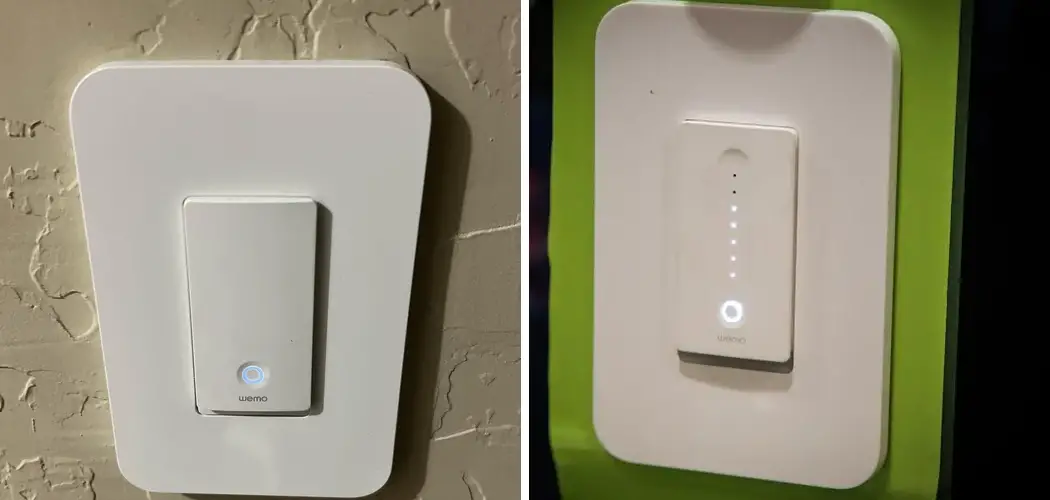
Smart home gadgets are deeply convenient—when they work. But, as anyone who’s ever tried to turn the lights off with a voice command only to be met with silence knows, there’s a decent chance your Wemo light switch may one day lose its connection. If your switch starts ignoring you (or blinking an insistent, unbroken orange), odds are a reset could help. “Could” is important here: no fix is truly universal, though factory resetting a Wemo device seems, in practice, to solve most quirks related to lost network connection.
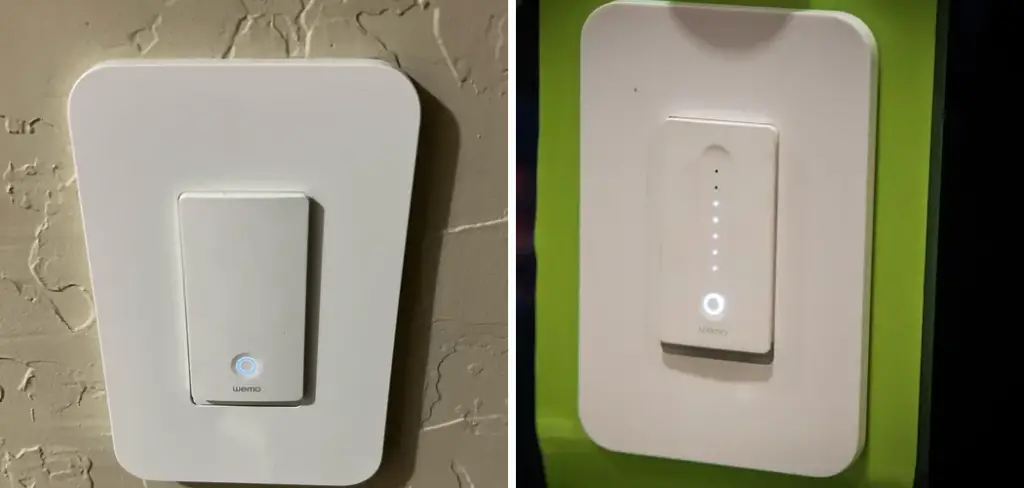
Resetting essentially wipes the slate clean. You’re removing any old network details that may be gumming up the works and giving your switch another chance to handshake with your Wi-Fi. In the steps that follow, I’ve outlined, from personal experience and multiple support docs, a reset process that has worked for me and for others.
We’ll touch on which buttons actually matter, what those little blinking lights really mean (and why they almost always seem to choose the most ambiguous colors), and how to set the switch up again without wanting to throw your phone. In this guide on how to reset wemo light switch, we’ll also cover some troubleshooting tips to help you avoid having to reset your switch in the future.
Materials You’ll Need
There’s not much to track down, but let’s be honest—searching for passwords or updating apps while wrestling with a temperamental gadget can be a recipe for irritation. You should have:
- Your phone/tablet, up-to-date Wemo app installed.
- Your Wi-Fi network name (SSID) and password are written somewhere reliable. Trust me, trying to remember that string of characters under stress rarely ends well.
- Physical access to the switch. No need for screwdrivers or voltage meters—everything you need is, for once, on the outside.
7 Simple Step-by-step Guidelines on How to Reset Wemo Light Switch
Step 1: Locate the Reset and Restart Buttons
First, take a good look at the underside of the switch’s main toggle. Beneath that plastic, you’ll find two tiny buttons, quite close together. They do very different things. The right-hand one is for restarting—a basic reboot that leaves most settings untouched. The button on the left, on the other hand, triggers the full factory reset. Pressing the wrong option won’t brick your device, but it won’t fix persistent network glitches, either. So, if things aren’t working right, aim for the left.

Step 2: Press and Hold the Reset Button
When you’re certain you’ve found the correct button, push and hold it firmly. How long is long enough? Five seconds usually work; ten occasionally seems necessary. Here’s where people slip: don’t let go early, or you’ll just cause a soft restart. The trick is patience—wait until you see that little LED at the top begin blinking rapidly. That erratic flash generally signals that the switch is wiping its memory and restoring everything to factory default.
Step 3: Observe the LED Indicator Light
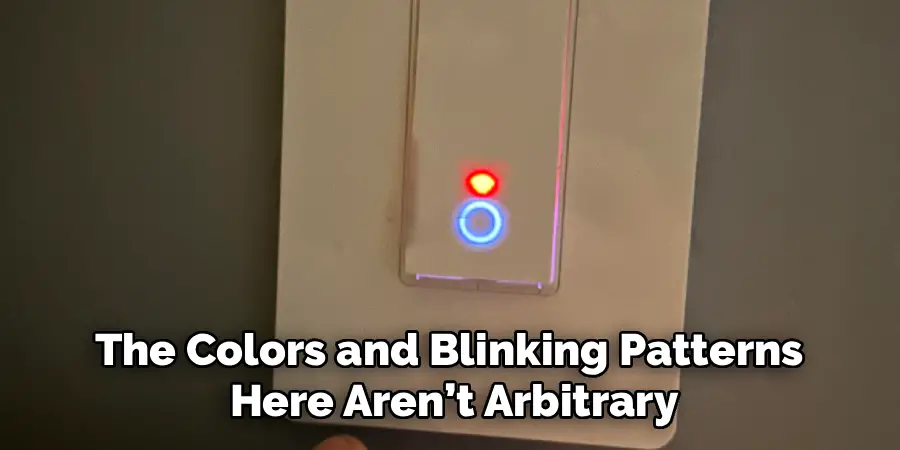
Release the reset button and keep your eyes on the LED indicator. The colors and blinking patterns here aren’t arbitrary, though at times, they appear so. Within a minute or so, you may see brief flashes of red or orange (which often means the old Wi-Fi settings are being cleared out). Eventually, you’re hoping for the light to switch to a green-and-orange alternate blink. That’s the Wemo’s way of saying, “Ready for setup.” If, after a couple of minutes, you’ve got a solid red or the green/orange sequence doesn’t appear, well, you might need to repeat the previous step with extra determination.
Step 4: Open the Wi-Fi Settings on Your Smartphone
At this point, move to your phone or tablet. Don’t open the Wemo app yet. Instead, head straight to your Wi-Fi settings. Enable your Wi-Fi if you happen to keep it off. In your list of available networks, look for a new entry: usually something with “Wemo” and either a model number or random digits. This is a temporary network your just-reset switch is broadcasting.
Step 5: Connect to the Default Wemo Network
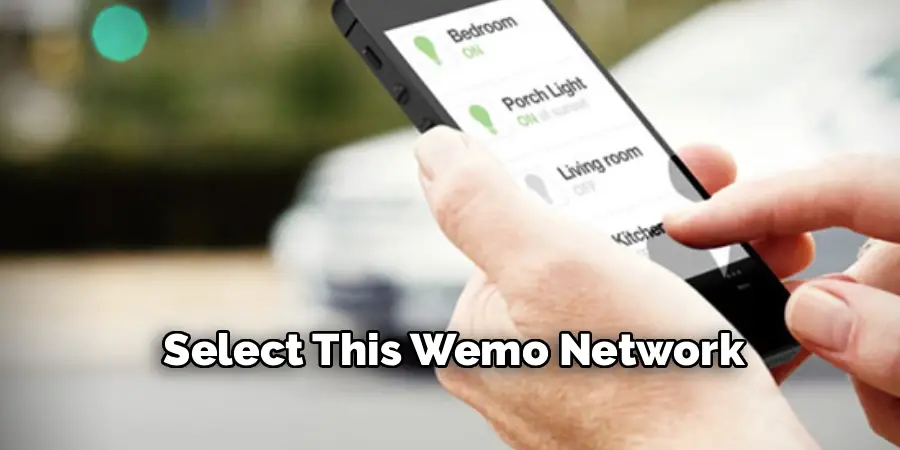
Select this Wemo network. No password will be required (and if your phone tries to warn you about the lack of Internet, you can safely ignore that). Stay connected to this network, despite prompts to rejoin your regular Wi-Fi. This step trips people up: you must maintain this direct connection so the app can later configure your real Wi-Fi details.
Step 6: Follow the In-App Setup Instructions
Now launch the Wemo app. It should automatically detect the switch in setup mode and offer clear prompts. These usually involve naming your device, choosing your home Wi-Fi from a list, and entering the Wi-Fi password. Triple-check what you type here—incorrect login details will mean starting the reset all over.
Once the credentials are submitted, the app attempts to sync with the switch. If the green-and-orange blinking vanishes and you see a steady green (or sometimes the light just turns off), give yourself a cautious nod. Setup is likely complete.
Step 7: Test the Switch and Verify Remote Access
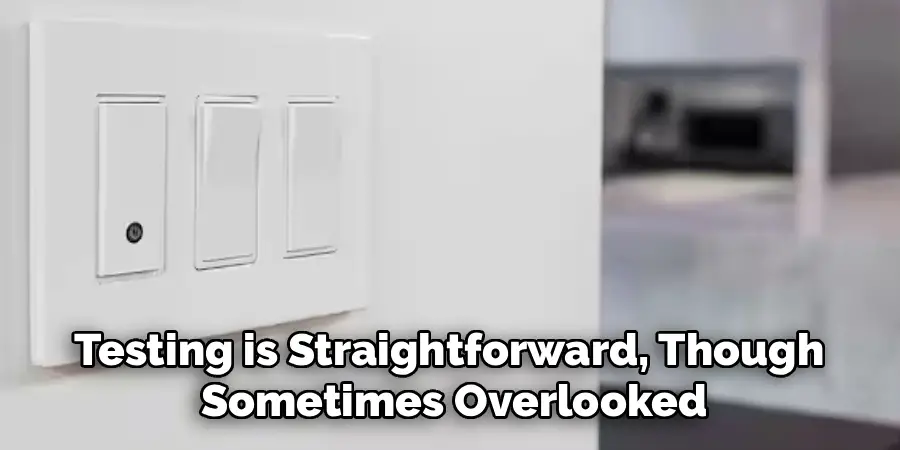
Testing is straightforward, though sometimes overlooked. Open the Wemo app and toggle your lights a few times. There should be no noticeable delay; you’ll likely hear the click and see the room adjust almost immediately. As an extra check, turn off the device’s Wi-Fi so your phone is only using mobile data, then try again in the app. If everything responds, your switch is now set for remote control going forward.
Following these steps on how to reset wemo light switch, you can also take a few extra precautions to ensure your remote access is secure. First, make sure to use a strong and unique password for your Wemo account. This will help prevent any unauthorized access to your devices.
Common Mistakes to Avoid
These are lessons many of us have learned the hard way. Mistaking the restart button for reset accomplishes little—no new connection, just a basic power cycle. Entering the wrong Wi-Fi password in the app? That also triggers failure. Switching away from the Wemo temporary network before setup is done leaves the device stranded mid-configuration.
And hurriedly releasing the reset button before the quick LED flashes means the reset won’t truly happen. Lastly, double-check your router: Wemo switches still demand a 2.4GHz band; a 5GHz-only setup won’t ever work.
Do You Need To Use Professionals?
In almost all situations, there’s no reason to pay anyone for this job. The process doesn’t require technical skills, much less an electrician, as long as the switch powers on and you can press the right buttons.
If, however, the switch gets unusually hot or refuses to power up (even after flipping your circuit breaker for a reset), consider that something in the wiring may be amiss. Don’t ignore genuine hardware trouble, but routine resets don’t call for an expert.
How Much Will It Cost?
There’s no fee for a factory reset—just your time and perhaps a dash of patience. The Wemo app is free, and troubleshooting doesn’t unlock any new charges.
If your hardware turns out to be defective (and outside warranty limits), a replacement switch on the market, last I checked, runs in the ballpark of thirty to fifty dollars, depending on the model and whatever sales might be running.
Frequently Asked Questions
Q1: Why Is My Wemo Switch Blinking Orange?
A blinking orange light is generally a network issue—likely your switch has lost its spot on your Wi-Fi. Maybe you recently changed your router password, maybe there was a brief power cut, or maybe the device just lost track. Resetting, as above, seems to solve this unless there’s a deeper hardware fault.
Q2: Can I Reset The Switch Without The App?
Yes, you can physically hold the reset button down to wipe the memory, no app required. But you’ll need the app to connect the switch back to your home’s Wi-Fi. The button alone isn’t enough to finish the configuration.
Q3: Do I Have To Reconfigure My Smart Speaker Routines?
A full factory restore wipes the switch from Alexa or Google Home. If you use the exact same device name as last time during setup, smart assistants usually pick it up automatically. Opt for a new name, though, and you’ll need to manually update your routines within those apps.
Conclusion
When gadgets stall, it’s tempting to feel equal parts annoyance and defeat. Luckily, a proper reset typically resolves connectivity weirdness. Just keep your Wi-Fi details handy and don’t rush the button presses. If you’re methodical, you’ll have your switch reconnecting with both your phone and your router in short order.
Don’t forget: check for 2.4GHz compatibility and try not to panic when faced with a blinking light. With any luck, your smart lighting routines will soon snap right back into place. Thanks for reading this guide on how to reset wemo light switch.

Rick is a handyman who grew up helping his dad with his business. He learned a lot from him about how to fix things, and also about how to work hard and take care of business. These days, Rick is still into fixing things- only now, he’s doing it for a living.
Rick is always looking for new ways to help people grow and develop. That’s why he started contributing to this blog: to share all his experience and knowledge so that he can help people who are interested in DIY repair.