
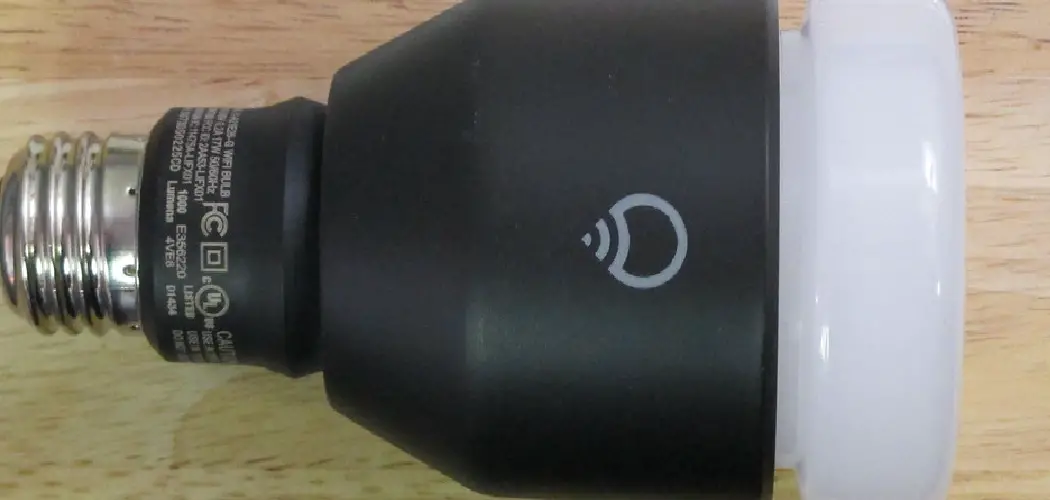
Smart bulbs make life easier, but sometimes they act up. Maybe your bulb won’t connect to Wi-Fi, won’t respond to the app, or keeps flickering for no reason. When that happens, knowing how to reset LIFX light bulbs becomes your best troubleshooting tool. A reset clears out old settings, wipes corrupted data, and gives your bulb a clean slate to start fresh.
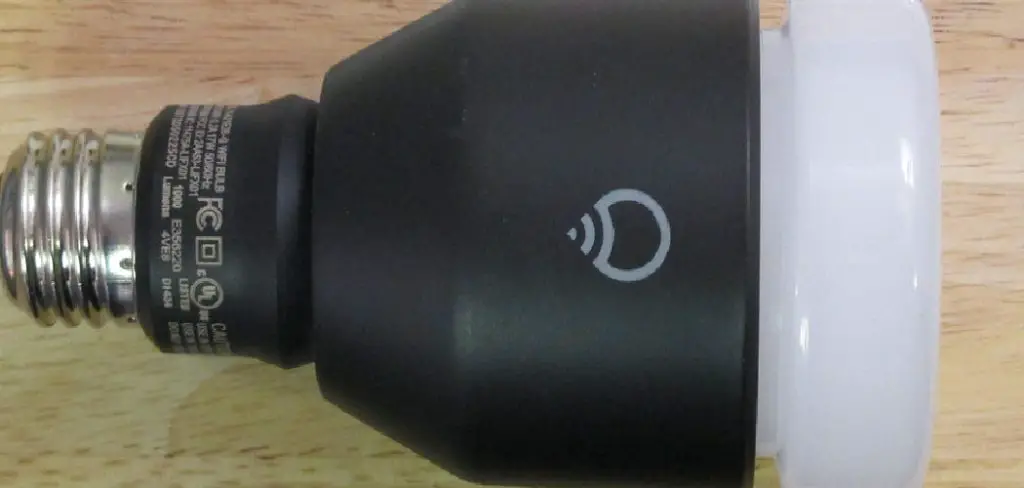
The good news? You don’t need any technical skills or special tools. If you can flip a light switch, you can reset your LIFX bulb. Whether you’re moving to a new home, switching routers, or simply fixing a stubborn connection issue, a reset solves most problems in seconds.
This guide walks you through every method in plain, easy-to-follow language. We’ll cover the power-cycle reset, the app-based reset, and what to do when things don’t go as planned. By the end, you’ll feel confident handling any LIFX hiccup on your own. Let’s get your smart lighting back to working perfectly, one simple step at a time.
Why Resetting Your LIFX Light Matters
Resetting your LIFX bulb isn’t just about fixing problems—it’s about keeping your smart home running smoothly. Over time, bulbs can store outdated network details, glitchy firmware data, or conflicting settings that cause frustrating performance issues.
A proper reset solves connection drops, unresponsive controls, and pairing failures in one quick action. It’s also essential when you change your Wi-Fi password, replace your router, or sell or gift the bulb to someone else. Clearing the old data protects your privacy and ensures the next setup goes flawlessly.
Think of it like restarting a slow computer. A fresh start often clears away the small errors that build up during everyday use. Mastering this simple skill saves you time, reduces stress, and keeps your lighting responsive whenever you need it.
Step-by-Step Guide to How To Reset LIFX Light
Step 1: Locate Your Bulb and Switch
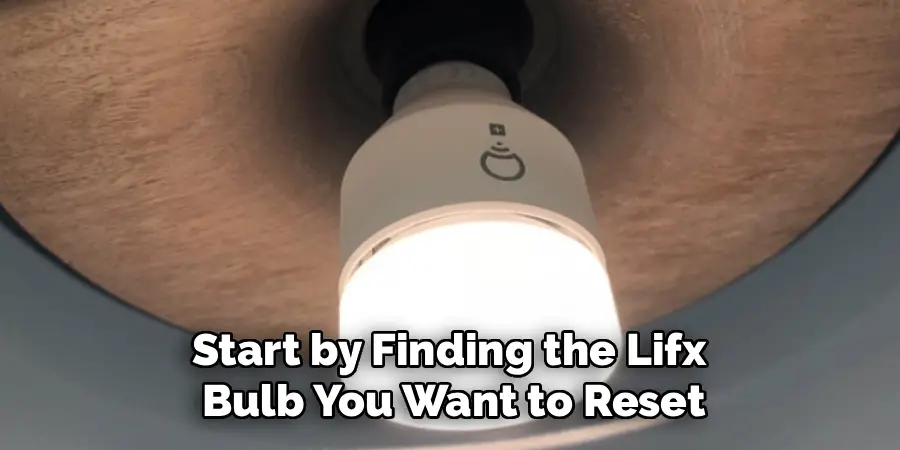
Start by finding the LIFX bulb you want to reset and the wall switch or lamp switch that controls it. This method works best when you have direct, easy access to the power source. If your bulb sits in a hard-to-reach fixture, grab a stable stool or chair first.
Make sure no smart timers or automation rules will interrupt the power during the process. If you use a smart plug, set it to manual mode for now. Having clear control over the switch makes the entire reset smoother and prevents accidental interruptions that could leave the bulb half-reset.
Step 2: Power the Bulb On
Turn the switch on and let your bulb glow for at least five seconds. This warm-up period ensures the bulb is fully powered and ready to register the reset sequence you’re about to perform.
If the bulb doesn’t light up at all, check that it’s screwed in properly and that the switch is working. A loose connection can cause the reset to fail. Once you see a steady light, you’re ready to begin the power-cycle method. Keep your hand near the switch, because timing matters in the next few steps. Stay relaxed—this part is genuinely simple and forgiving.
Step 3: Perform the Power-Cycle to Reset LIFX Light
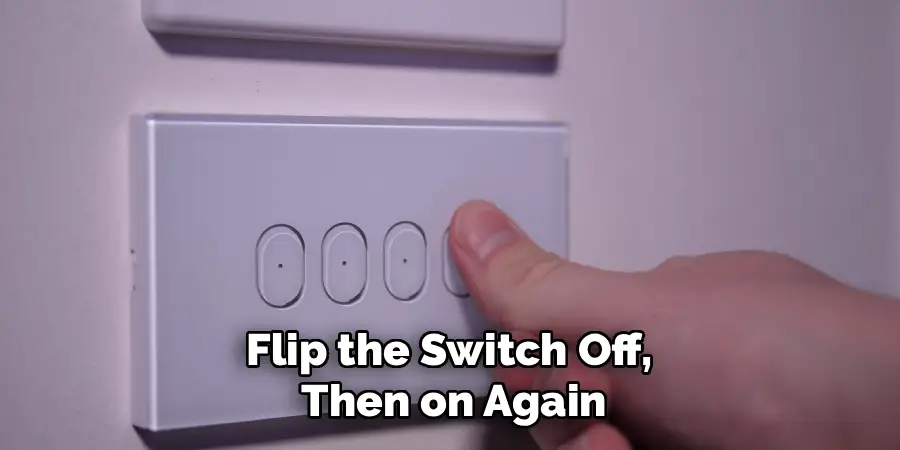
Now comes the main action. Flip the switch off, then on again, repeating this cycle five times in a row. Keep each off-and-on movement quick, leaving roughly two seconds between each toggle. This rhythm tells the bulb you want to learn how to reset LIFX light settings completely.
After the fifth cycle, watch the bulb closely. It should blink or flash to confirm it received the reset command. Don’t rush, but don’t pause too long between flips either. If nothing happens, simply turn it off, wait ten seconds, and try the sequence again from the start.
Step 4: Watch for the Confirmation Flash
After completing the power cycle, your bulb will respond with a visual signal. Most LIFX models cycle through colors—red, green, then blue—before settling on a soft white glow. This light show is your confirmation that the reset worked correctly.
If you see this sequence, congratulations: your bulb is now back to factory settings. If the bulb stays a solid color without flashing, the reset didn’t register. In that case, turn the switch off completely, wait about fifteen seconds, and repeat the five power cycles. Patience here pays off, and most bulbs respond on the second attempt without any trouble.
Step 5: Reset Through the LIFX App
Prefer a software approach? Open the LIFX app on your phone and tap the bulb you want to manage. Head into the device settings menu, then look for the “Reset” or “Forget Device” option. Tapping this removes the bulb from your account and clears its stored data.
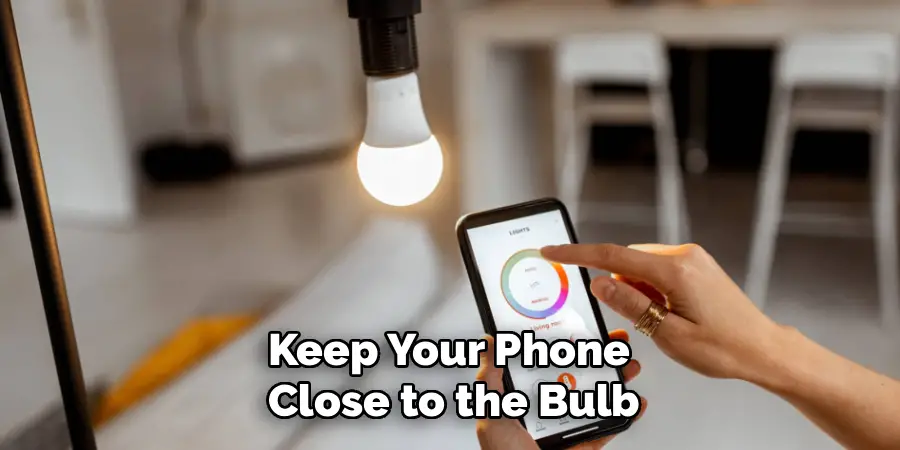
This method is handy when the bulb still connects to the app but behaves oddly. It’s also useful before transferring ownership. Once you confirm the reset, the app guides you through the rest. Keep your phone close to the bulb and your Wi-Fi active, since a strong signal helps the process complete without errors or timeouts.
Step 6: Reconnect the Bulb to Wi-Fi
With the reset complete, it’s time to set up your bulb again. Open the LIFX app and tap “Add Light.” The app will search for nearby bulbs in pairing mode—your freshly reset bulb should appear within moments.
Select it, then follow the on-screen prompts to join your Wi-Fi network. Enter your password carefully, since a single typo is the most common reason setups fail. Choose the 2.4GHz band if your router offers both options, because LIFX bulbs connect more reliably on that frequency. Once connected, name your bulb and assign it to a room for easy control later.
Step 7: Test and Confirm Everything Works
The final step is a quick check to make sure your reset succeeded. Use the app to turn the bulb on and off, then adjust its brightness and color. Each command should respond instantly without lag or flickering.
Try a few scenes or schedules too, if you use them, to confirm full functionality. If everything responds smoothly, your bulb is ready for daily use again. Should you notice any lingering issues, repeat the reset once more or move your router closer to reduce interference. A successful test means you’ve mastered the process and can troubleshoot confidently anytime.
Frequently Asked Questions
How Many Times Should I Flip the Switch to Reset My Bulb?
Flip the switch off and on exactly five times in a row, leaving about two seconds between each toggle. After the fifth cycle, your bulb should flash through red, green, and blue before glowing white. This color sequence confirms the reset worked. If nothing happens, wait ten seconds and repeat the sequence carefully from the beginning.
Will Resetting Delete My Custom Scenes and Schedules?
Yes, a full reset returns your bulb to factory settings, which clears all custom scenes, schedules, and automation rules tied to that device. You’ll need to recreate them after reconnecting. To save time, write down your favorite settings beforehand. Once the bulb rejoins your network, you can rebuild your preferred lighting setups quickly through the app.
Why Won’t My Bulb Flash After the Power Cycle?
If your bulb doesn’t flash, the timing of your switch flips may be slightly off, or the power interruptions were too short. Turn the bulb off completely, wait fifteen seconds, and try again with steady, even pacing. Loose bulbs or faulty switches can also block the reset, so double-check that everything is securely connected first.
Can I Reset the Bulb Without Using the App?
Absolutely. The power-cycle method works entirely through your wall or lamp switch, with no app or phone needed. This is perfect when the bulb won’t connect to the app at all. Simply flip the switch off and on five times, watch for the confirmation flash, and your bulb returns to its factory state instantly.
What Should I Do If the Reset Still Doesn’t Fix My Problem?
If repeated resets don’t solve the issue, check your Wi-Fi signal strength and router settings, since weak connections cause many problems. Make sure you’re using the 2.4GHz band. Updating the app and your bulb’s firmware can also help. Still stuck? Reach out to LIFX support, where expert help is available to guide you through advanced troubleshooting.
Conclusion
Smart lighting should make your home feel effortless, and now you have everything you need to keep it that way. Learning how to reset LIFX light bulbs gives you a reliable fix for connection drops, unresponsive controls, and pairing troubles—all without calling for help or buying replacements.
Remember the two main methods: the quick power-cycle using your wall switch, and the app-based reset for software-level issues. Both take only moments and require no technical background. Whenever your bulb misbehaves, a simple reset usually brings it right back to life.
Don’t let a stubborn bulb dim your day. Grab your phone or flip that switch, follow the steps above, and watch your smart lighting respond perfectly once more. With a little practice, you’ll handle any issue with confidence. Try it today, and enjoy the bright, responsive home you deserve—one easy reset at a time.

Rick is a handyman who grew up helping his dad with his business. He learned a lot from him about how to fix things, and also about how to work hard and take care of business. These days, Rick is still into fixing things- only now, he’s doing it for a living.
Rick is always looking for new ways to help people grow and develop. That’s why he started contributing to this blog: to share all his experience and knowledge so that he can help people who are interested in DIY repair.