
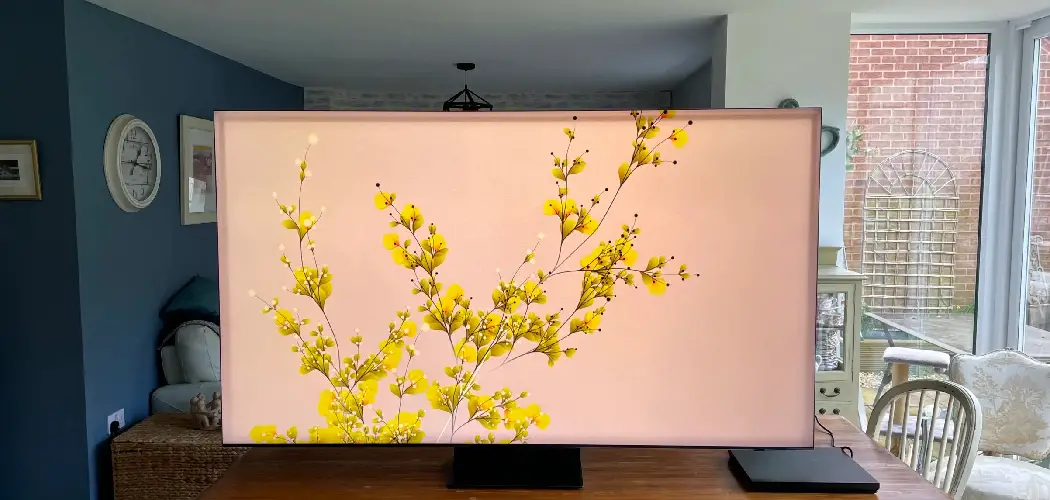
Are you looking to add photos to your Frame TV but unsure where to begin? The Frame TV is a unique television that doubles as an art piece, displaying high-quality artwork when not in use.
How to add photos to Frame TV transforms it into a personalized art gallery, allowing you to display your favorite images with style and flair. Unlike traditional TVs, the Frame TV is designed to blend seamlessly with your home decor, offering a picture frame appearance when not in use.
Following a few simple steps, you can easily upload and showcase your cherished memories, whether family portraits, vacation snapshots, or artistic works. This guide will walk you through the process, helping you enrich your living space with unique visual stories.
What Will You Need?
Before you begin, make sure you have the following items ready:
- Your Frame TV
- A USB drive or external hard drive with your desired photos
- A computer or smartphone connected to the same Wi-Fi network as your Frame TV
Once you have these items, you can start uploading pictures to your Frame TV.
10 Easy Steps on How to Add Photos to Frame TV
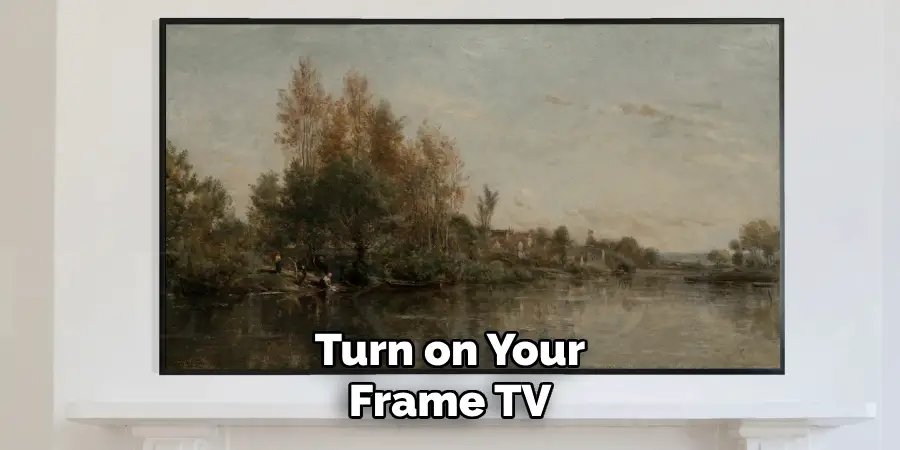
Step 1. Turn on Your Frame TV:
To begin the process, power on your Frame TV using the remote control or the button on the device itself. Ensuring the TV is on and fully operational is crucial for seamless connectivity and functionality. Once powered on, navigate to the Home menu, from which you’ll be able to access various features of the Frame TV. This is where you will manage your settings, select your art mode, and eventually add your personal photos. Establishing a stable connection between your TV and other devices is essential to facilitate the smooth transfer of your images.
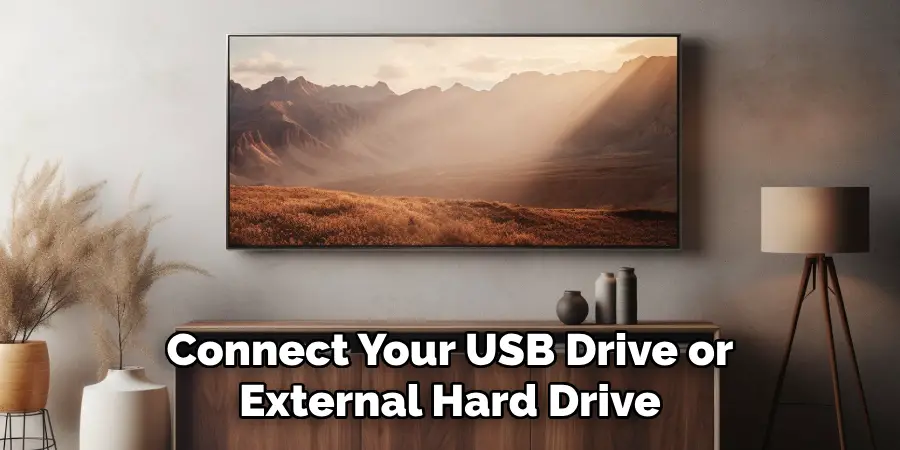
Step 2. Connect Your USB Drive or External Hard Drive:
Insert the USB drive or external hard drive containing your desired photos into one of the USB ports on your Frame TV. Ensure the drive is correctly formatted and contains image files supported by the TV, such as JPEG or PNG. Once connected, your Frame TV should automatically recognize the device and prompt you with options to view the content. Navigate through the menu to locate and access your photo files, preparing them for transfer.
Step 3. Open the Art Mode Menu:
Once your USB drive is connected, use your remote to navigate to the Art Mode on your Frame TV. Art Mode is a unique feature that transforms your TV into a showcase for artwork or personal photos. Access the Art Mode menu by pressing the corresponding button on your remote or selecting it from the on-screen options. This menu will allow you to manage the appearance of your Frame TV and select the images you want to display, turning your living space into a personalized art gallery.
Step 4. Select ‘Add Photos’:
Within the Art Mode menu, locate and select the ‘Add Photos’ option. This will enable you to choose images from your connected USB drive or external hard drive for upload. Use your remote to scroll through the options and select the images you want to display. You can choose multiple photos at once, ensuring you carefully review your choices. Confirm your selections to proceed with the uploading process, after which your chosen images will be ready to become part of your Frame TV’s visual presentation.
Step 5. Arrange and Edit Photos:
After selecting the photos you wish to upload, you can arrange and edit them within the Frame TV’s Art Mode. Use the remote to access the editing features, including cropping, applying filters, or adjusting the display duration. This allows you to customize your photo presentation to fit your personal style or the ambiance of your room. Taking the time to edit your images ensures they are displayed in the most flattering and harmonious way possible, enhancing the overall impact of your Frame TV’s art display.
Step 6. Save Your Selections:
Once you have arranged and edited your photos to your satisfaction, proceed to save your selections. Use your remote to navigate to the save option within the Art Mode menu. This step ensures that all the changes you made—such as the order, appearance, and display settings—are stored and ready for display. By saving your selections, you lock in your customizations, enabling your Frame TV to portray your chosen images whenever it enter Art Mode beautifully. After saving, you can exit the menu and enjoy viewing your personalized gallery.
Step 7. Set Display Preferences:
You can now set your display preferences with your photos saved and arranged. Navigate to the display settings within the Art Mode menu to tailor how your photos appear on the Frame TV. Options may include display duration, transition effects between images, and even sleep mode settings to control when the TV switches to Art Mode. Adjust these preferences based on how you intend to use your Frame TV—whether it’s a constant display of your gallery or a timed exhibit during specific hours. Customizing these settings allows you to fully enjoy your artwork in a way that enhances your environment, providing the perfect background for your living space.
Step 8. Use the SmartThings App for Remote Access:
To gain more flexibility in managing your Frame TV’s Art Mode, you can use the SmartThings App on your smartphone or tablet. Download and install the app if you haven’t already, and ensure it is connected to the same Wi-Fi network as your Frame TV. Once linked, open the app and navigate to your Frame TV’s settings. From here, you can remotely access and modify your photo selections, preferences, and more, allowing you to manage your art display from anywhere in your home. The app also allows for easy updates, ensuring your collection is always fresh and up to date with your latest favorite photos.

Step 9. Update and Refresh Your Photo Selection:
Updating your photo selection keeps your Frame TV’s display fresh and engaging. To update your collection, connect your USB or external hard drive with new photos and navigate to the Art Mode menu. Select ‘Add Photos’ and include any new images you wish to display. You can replace existing pictures or add to your current selection. After making updates, remember to arrange, edit, and save your selections as needed. Regularly refreshing your gallery ensures your Frame TV reflects your current tastes and experiences, making it a dynamic part of your decor.
Step 10. Explore Art Store for Professional Artwork:
Beyond displaying personal photos, you can enhance your Frame TV’s Art Mode by exploring the Art Store, where you can access a vast collection of professional artworks. Use your remote to navigate to the Art Mode menu’s Art Store option. Here, you can browse a curated selection of paintings, photography, and digital art from renowned artists and art institutions worldwide. Many pieces are available for purchase or through a subscription, allowing you to expand your home’s artistic repertoire quickly. Once you find artwork that resonates with you, you can download and display it on your Frame TV, blending professional art with your photo collection to create an ever-evolving gallery experience.
By following these steps, you can easily create and manage a personalized art gallery on your Frame TV, allowing you to enjoy beautiful visuals that reflect your unique taste and style.
5 Things You Should Avoid
- Ignoring Resolution Requirements: Ensure that the photos you upload meet the specific resolution requirements of your Frame TV. Low-resolution images can appear pixelated or blurry, diminishing your display’s visual quality and elegance.
- Overlooking File Formats: Not all file formats may be compatible with your Frame TV. Commonly supported formats like JPEG and PNG are safe choices, so take time to check your device’s specifications to avoid incompatibility issues.
- Neglecting Calibration Settings: You need to calibrate your TV’s display settings to avoid colors that look off or not true to life. Adjust your TV settings to optimize brightness and contrast, ensuring your photos are vivid and accurate.
- Poor Cropping Choices: Avoid haphazardly cropping your photos, which can lead to essential parts of the image being cut off. Carefully select crop settings to maintain the balance and integrity of your photos.
- Forgetting to Organize Photos: With proper organization, finding specific photos in a large collection can be easier. Create albums or categorize your photos logically, ensuring easy access to your favorites when necessary.
Conclusion
How to add photos to Frame TV can significantly enhance your living space by showcasing your personal artistry or cherished memories. To maximize the potential of this feature, it’s important to keep a few key points in mind.
First, ensure your photos meet the required resolution to maintain optimal quality. Additionally, adhere to compatible file formats to avoid technical hitches. Calibrating your display settings correctly plays a crucial role in preserving color authenticity and vibrancy. Thoughtful cropping and methodical organization further ensure that your gallery is aesthetically pleasing and easily navigable.
By incorporating these practices, you can transform your Frame TV into a seamless blend of technology and art, providing a personalized and exquisite viewing experience.

About
Angela is the chief editor of Indoorense. She began her career as an interior designer before applying her strategic and creative passion to lifestyle and home.
She has close to 15 years of experience in creative writing and online content strategy for housekeeping and cleaning,home decorations as well as other efforts.
She loves her job and has the privilege of working with an extraordinary team. She lives with her husband, two sons, and daughter in Petersburg. When she’s not busy working she spent time with her family.